Form Builder product guide
What is Form Builder
Form Builder is a tool that lets you build forms consisting of different fields.
By adding forms on the website, you can increase its functionality and improve user experience. Use Form Builder to create various forms, such as survey, questionnaire, sign-up form, using basic form fields available in the Form Builder. You can also manage your forms and review the results gathered from the website users.
Availability
Form Builder is available in Cohesivo.
How does Form Builder work
Form Builder interface
Form Builder user interface consists of:
A. Drop zone
B. Form fields toolbar
C. Save button
D. Search bar
E. Discard button
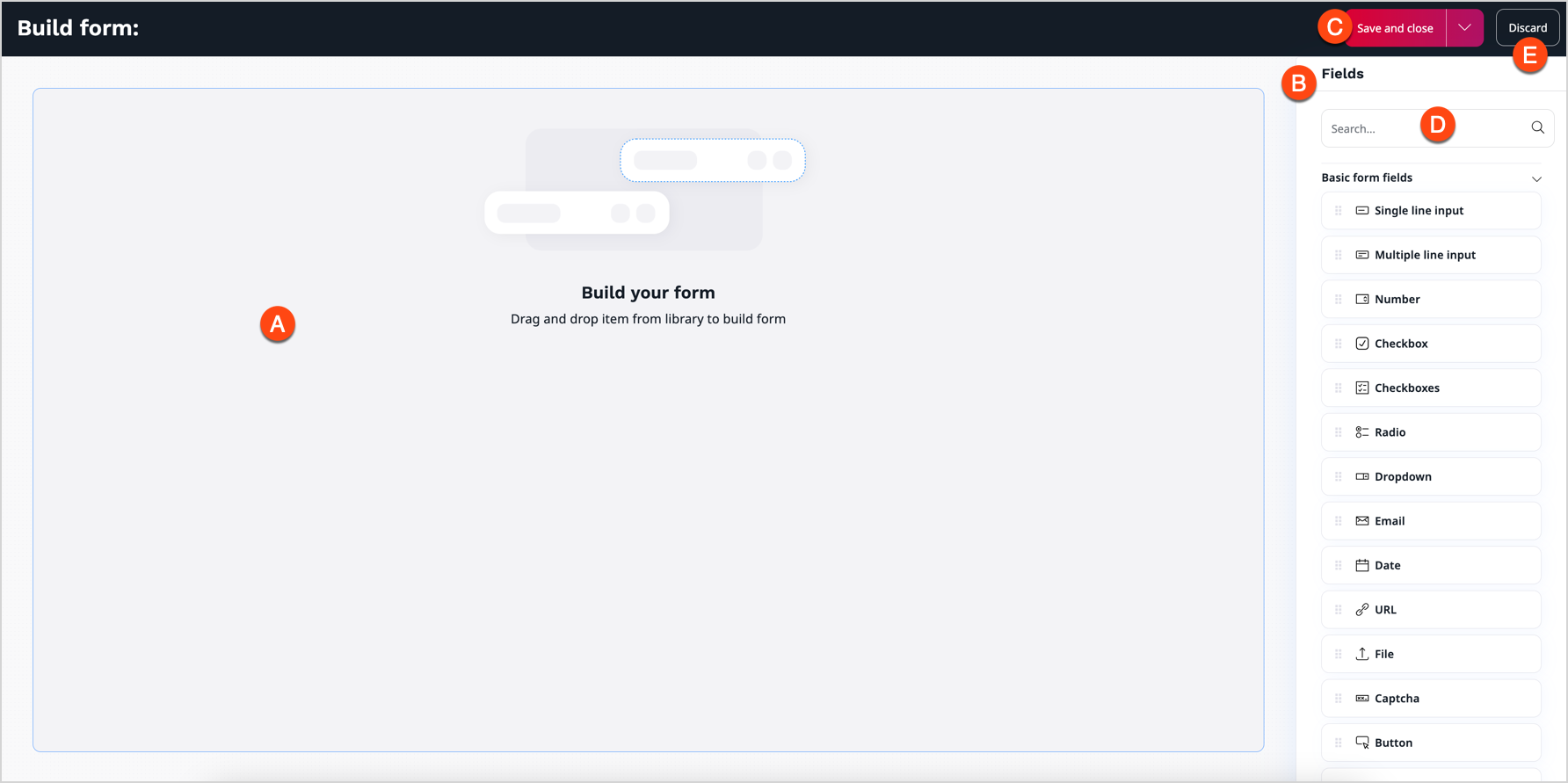
Form fields
To create forms, you can use available form fields or create custom ones.
The available basic form fields are:
| Field name | Icon | Description |
|---|---|---|
| Single line input |  |
Single line field for short text. |
| Multiple line input |  |
Multiple line field for longer text. |
| Number |  |
Field to set up a number using arrows. |
| Checkbox |  |
Single checkbox element with one option value available. |
| Checkboxes |  |
Multiple checkboxes with more than one option values available. |
| Radio |  |
List with multiple option values available and visible. |
| Dropdown |  |
Dropdown list with multiple option values available. |
 |
Field to insert an email address. | |
| Date |  |
Field to insert a date. |
| URL |  |
Field to insert an URL address. |
| File |  |
Interactive field to upload file. |
| Captcha |  |
Field with captcha and additional blank line to rewrite it. |
| Button |  |
Form submit button. |
| Hidden field |  |
Field used to submit metadata that should not be visible in rendered form. |
Create a form
Editors can use the created form anywhere on the website. Forms can be used in page blocks, embedded in the online editor or even used as a field relation. The same form can be placed at multiple locations on the website.
To learn more, see Work with forms.
Forms management
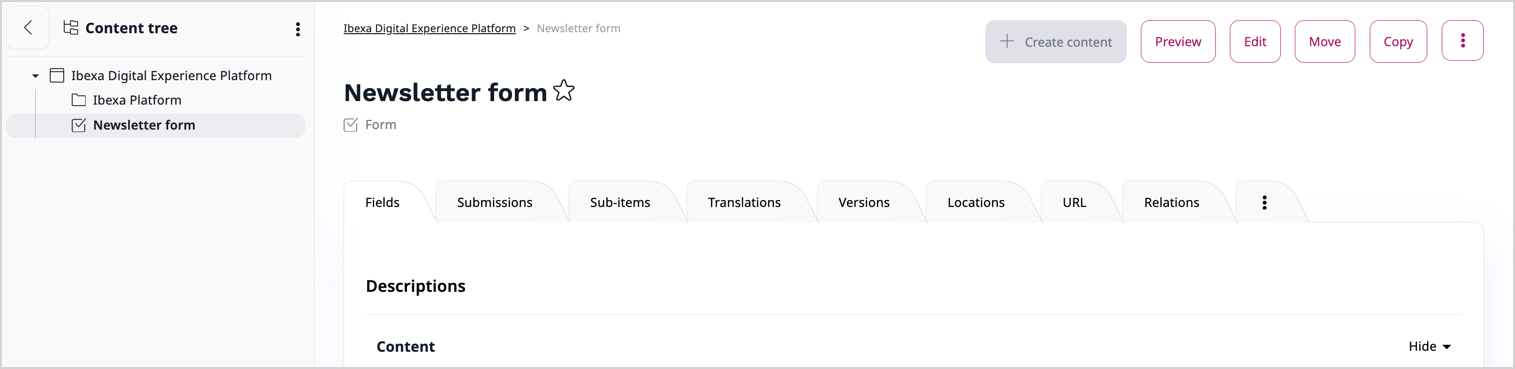
Form is one of available content items that you can find in the platform. You can work with it as with other regular items, for example, create new one, edit existing one, or move.
You can manage all the existing forms. To do it, in a selected place of the content tree find your form and click on it. In this window you can see all the information about your form, view submissions, create versions, and more
Using the buttons in the right corner, you can also edit, move, copy, hide, or send your form to the trash.
View results
You can preview the results of each published form. To do it, go to Submissions tab in the content item view:
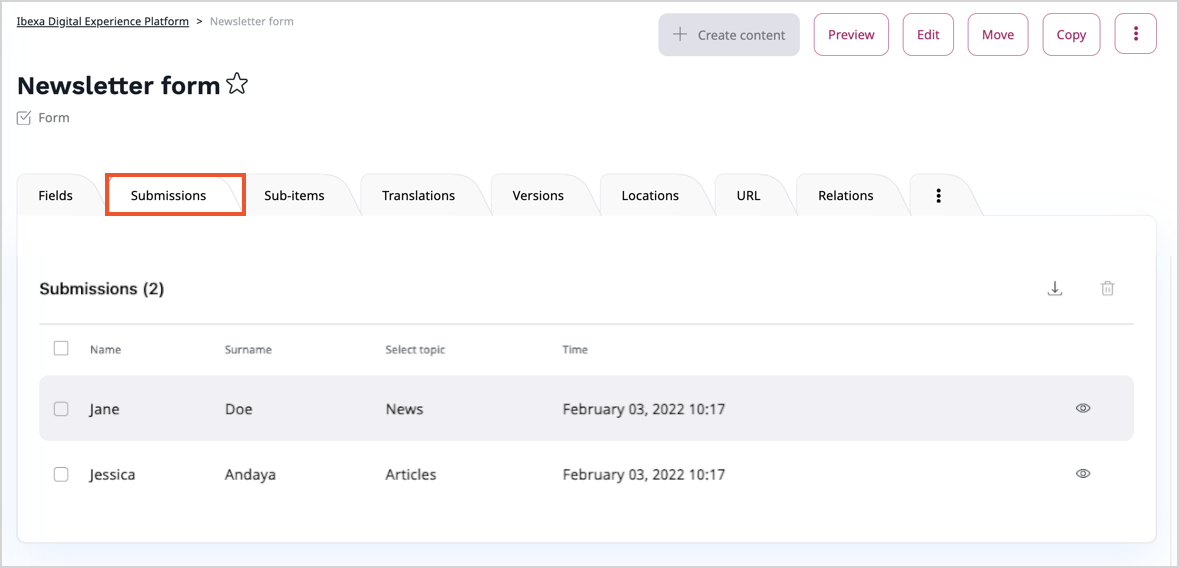
Here you can view the details of each submission or delete any of them.
The Download submissions button enables you to download all the submissions in a .CSV (comma-separated value) file.
Benefits
General overview
With Form Builder you're allowed to build an unlimited number of forms. These forms can be used anywhere on the website and are ready to start collecting information. Form Builder interface is plain, which makes the creation of forms fast and intuitive.
Forms management
Forms can be managed simply and effectively: you can copy them, move, organize into folders, create versions, and delete if necessary. Each field can be configured so that the form collects the exact details that you need.
Custom Form fields
With Form Builder you can use existing Form fields, but also you can extend it by adding new or modifying existing ones. This allows you to create forms that fit your needs.
Analytic tool
All the submissions can are visible in Submissions tab. You can download them as a .CSV file for additional analysis.